
Most budget mouse comparisons rank on sensor numbers and RGB, which says little about whether the mouse still works in 2028. The Logitech vs Corsair gaming mouse choice under about £50 comes down to which parts fail first and what you can do when they do. This article ranks the two brands on that, then gives a pick for each type of buyer.
How we judged which mouse lasts longer on a budget
Five factors decide how long a cheap mouse lasts, and the comparison follows them in order:
- Switches: the click mechanism wears out before anything else, and double-clicking is the usual symptom.
- Build: the cable, the feet and the grip surfaces take the daily friction.
- Power: a wireless mouse adds a battery, which brings its own ageing and running costs.
- Software: a mouse that needs a heavy app to behave properly is more hassle each year.
- Warranty: when a mouse fails, your legal and manufacturer cover decides whether that costs you £0 or £30.
Sensor quality is left out on purpose. At this price, any current Logitech or Corsair sensor is accurate enough for casual and most competitive play, so it rarely decides longevity.
A note on specifics: manufacturers revise models and listings often, and prices on Amazon UK move week to week. Where this article talks about a spec such as a click rating, battery type or warranty length, confirm it on the current listing before you buy.
Logitech and Corsair at a glance: what each brand does best under £50
Logitech’s budget range is built around a few long-running models. The wired G203 and the wireless G305 are the ones most UK shoppers end up comparing. The designs change slowly, which means a large pool of owner experience and easy replacement if you want the same mouse again. The G305 runs on a single AA battery rather than a built-in rechargeable cell, which matters for lifespan and is covered below.
Corsair’s budget mice are the Katar and Harpoon lines, including wireless versions of the Katar Pro. Corsair tends to pitch these as lightweight, with RGB and software that ties into its keyboards, headsets and fans. If your desk is already Corsair, that integration has real value. If it is not, you are paying attention to software you may not need.
In short, Logitech’s strength in this band is proven, stable designs. Corsair’s strength is a lighter feel and a broader ecosystem. Neither brand wins on every factor, so the sections below separate them.
Click durability: switch ratings, double-click complaints and what they really tell you
Both brands print switch ratings in millions of clicks on their product pages, and the numbers sound reassuring. Treat them as a manufacturer’s test figure under lab conditions, not a promise about your mouse. Two mice with the same rating can age differently depending on the switch quality, the spring tension and how dust and moisture reach the contacts.
Double-clicking, where one press registers as two, is the failure to watch for. It happens across brands and price points, and it is a defect of the switch wearing out, not something you did. Check recent UK reviews for a given model and search them for “double click”. A handful of complaints among thousands of reviews is normal. A cluster of complaints within the first six months is a warning.
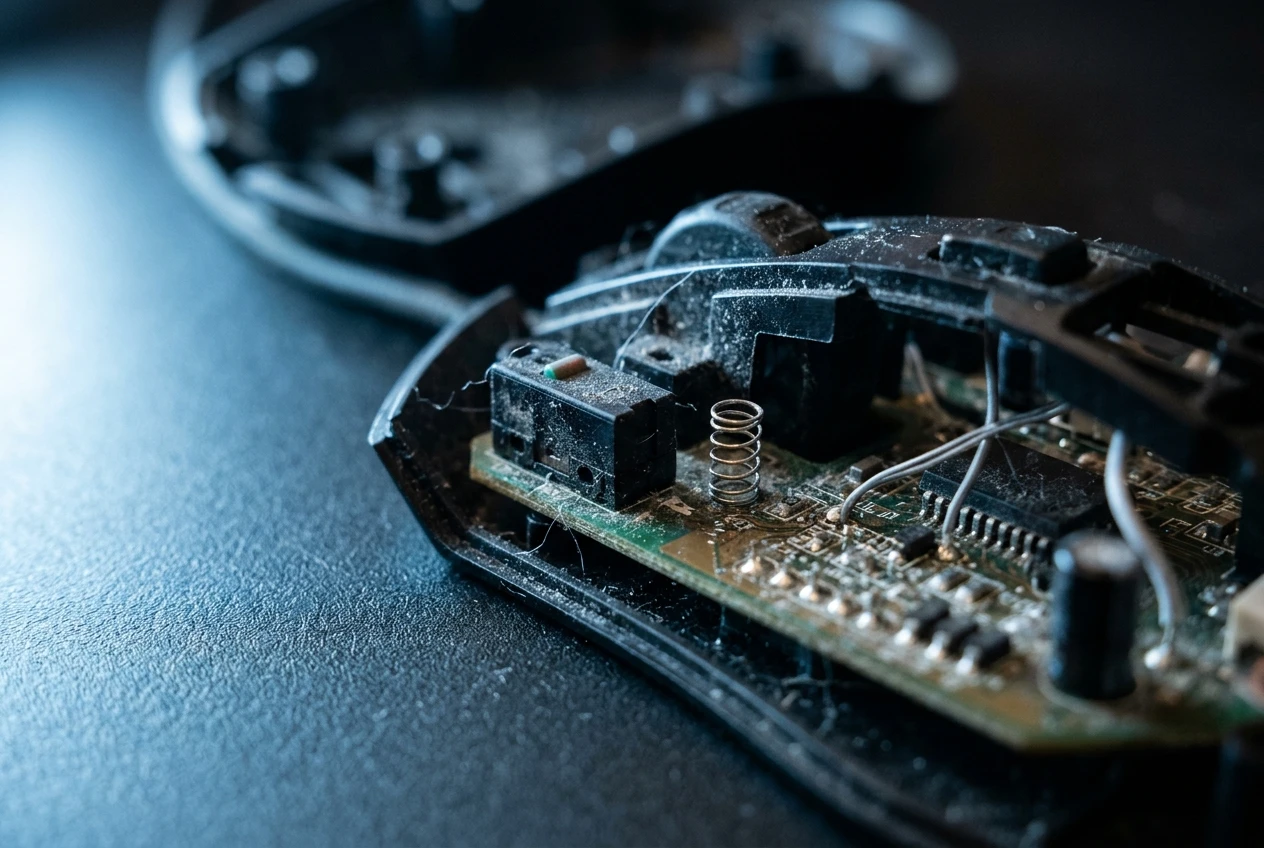
A practical test for any mouse you buy is to use it heavily in the first 30 days. A switch that is going to fail early often shows it quickly, and you are still inside the window where you can return it for a full refund under UK consumer law.
Here is a useful rule of thumb. If you click constantly in fast shooters or click-heavy genres, the switch matters more to you than anything else on this list. If you mostly play slower games, a rating gap barely affects the lifespan you will see. If you also use a mechanical keyboard, our guide to linear, tactile and clicky switches shows how differently switch types behave, though mouse switches are a separate mechanism.
Build quality, cable, feet and grips: where cheap mice wear out first
On a budget mouse, wear shows up in a predictable order.
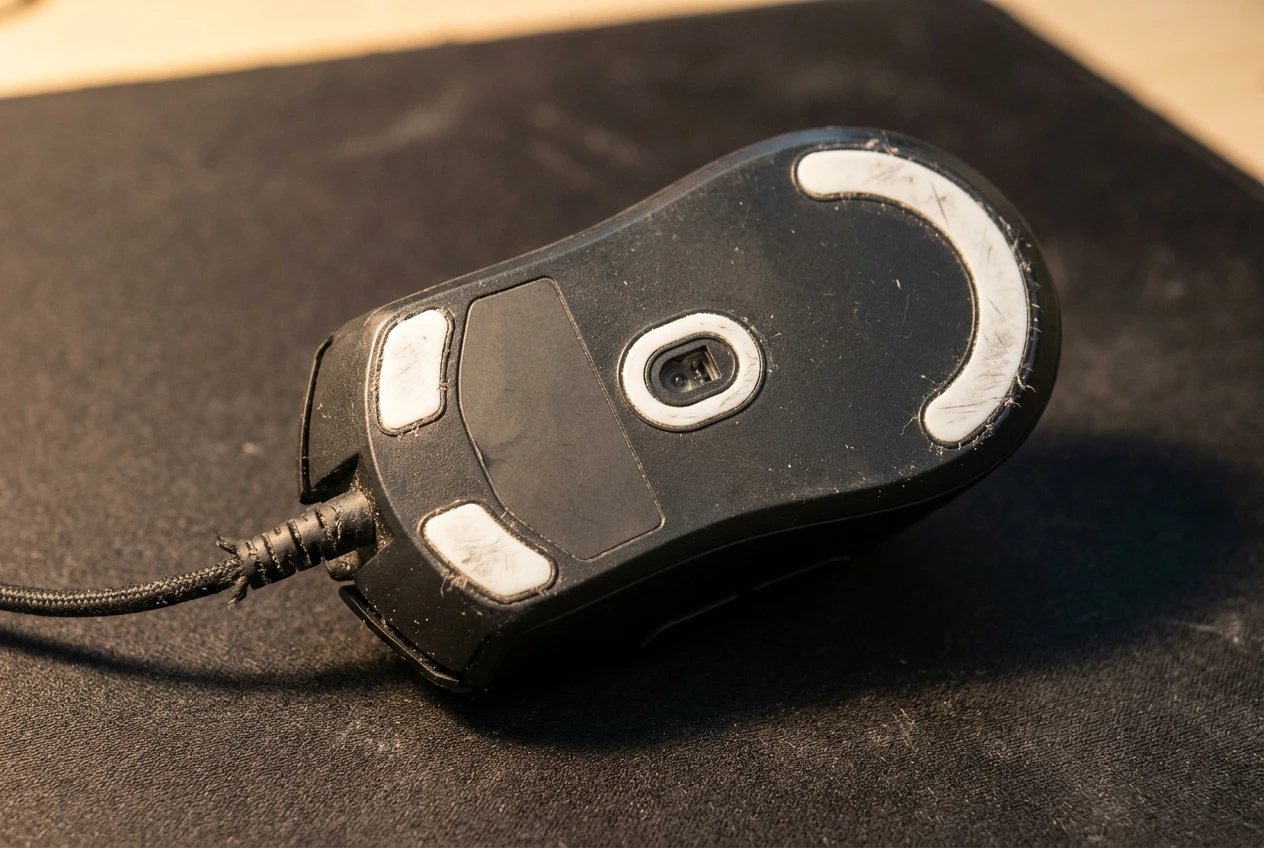
The cable fails first on wired mice, usually near the strain relief where it leaves the shell. A braided cable resists fraying better than a rubbery one, but the join is the weak spot either way. Some budget mice, Corsair’s lighter models among them, use a flexible cable designed to reduce drag. Flexibility helps feel, but check how the cable looks at the exit point after a few months, because that is where kinks and breaks begin.
The feet are the second thing to go. Small PTFE feet wear down against the mouse mat and eventually scratch or drag. The mat matters here: a rough or dirty surface wears feet faster, and our guide to the best cheap gaming mouse pads in the UK covers surfaces that are gentler on them. Replacement feet are sold separately for many popular mice, which is an argument for a model with a large following, and that tends to favour long-running Logitech designs.
The grips and shell finish wear last, but visibly. A smooth plastic top can turn shiny and slippery with sweat and use, while rubberised side panels can peel or go sticky on some budget mice. If you have warm or oily hands, a matte textured shell holds up better than glossy plastic.
The practical conclusion is that a heavier use pattern favours a simpler shell and a thicker cable, and a wireless mouse removes the cable problem entirely.
Wireless or wired: battery life and the long-term cost of each
A wired mouse has no battery, so it has one fewer part to fail. That is the single biggest durability advantage, and it is why a wired model at £20 to £30 is the safest choice for someone who wants to buy once and forget about it.
Wireless adds convenience and one more thing that ages. There are two battery types to consider:
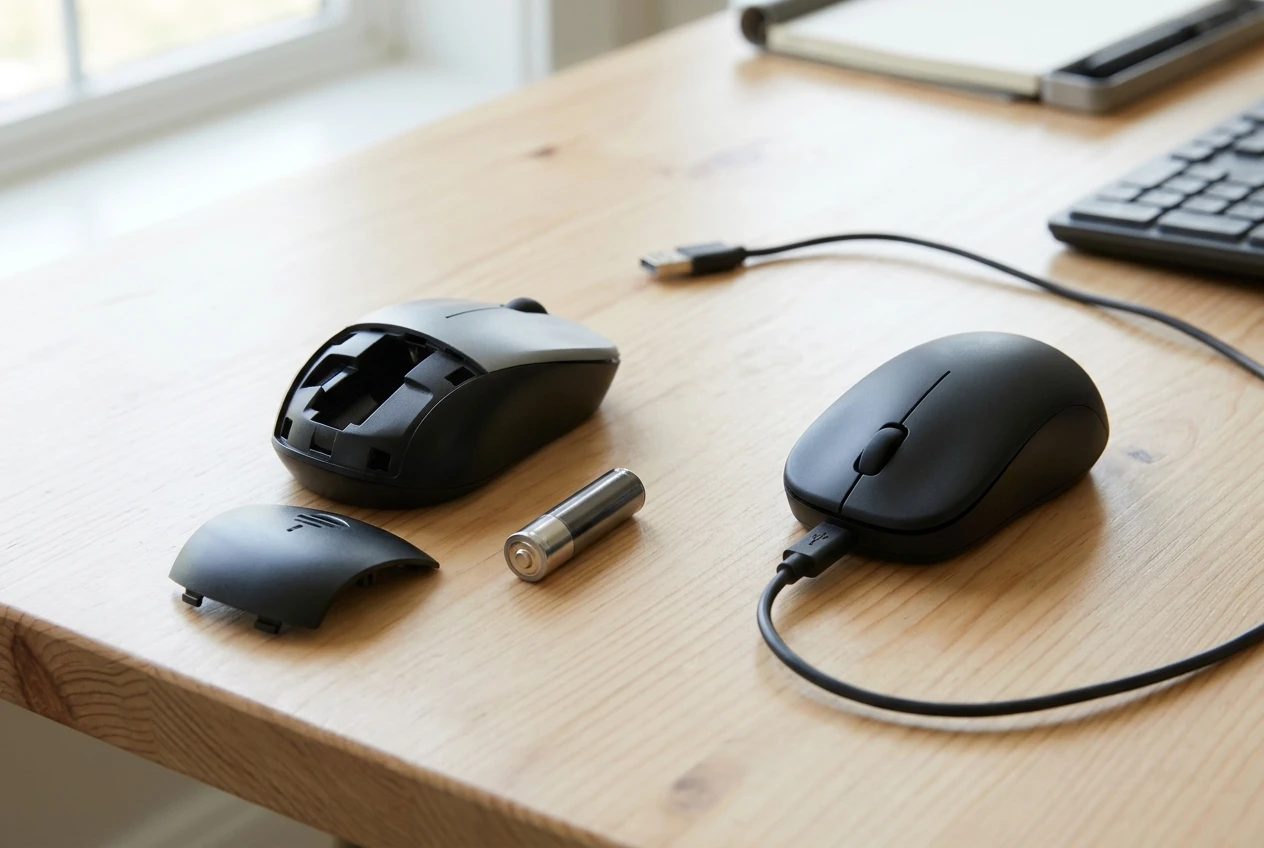
- Replaceable AA or AAA cell (the Logitech G305 uses one AA): you replace the battery for a small recurring cost, and the mouse itself does not wear out through battery ageing. If the mouse lasts for years, a fresh battery restores its full runtime.
- Built-in rechargeable cell (as on wireless Katar-style mice): no battery purchases, and you charge over USB. Rechargeable cells lose capacity over several years of daily charging, and in a sealed mouse you usually cannot swap the cell yourself.
For longevity, a swappable battery is the better design on paper, because the one part that degrades can be replaced. For convenience, a rechargeable mouse that you plug in while you play is hard to beat. Check each listing for the battery type, claimed runtime and whether the mouse can be used while charging.
Also consider the long-term cost. A wireless mouse costs more up front than an equivalent wired one, and the extra spend only pays off if you value the cable-free feel. If cost over three years is the aim, wired wins.
G HUB vs iCUE: which software is less hassle to live with
Neither mouse needs software to click and move, but both brands push you towards theirs for DPI, button remapping and lighting. The question is how much of it you have to live with.
Logitech G HUB and Corsair iCUE are both large applications built to manage many devices, so both run background processes and can feel heavy on a modest PC. That matters on a budget machine, where background load can cost you frames. If you are tuning a lower-spec PC, our guide to getting more FPS from your existing PC covers what to trim first.
The most useful feature for longevity is onboard memory. If a mouse stores your DPI and button settings on the device itself, you can configure it once and uninstall the software, which removes the ongoing hassle and avoids problems with future app updates. Check the listing for onboard profile storage on any model you consider.
Between the two, iCUE makes more sense if you already own other Corsair hardware, since one app controls everything. G HUB makes more sense if the mouse is your only Logitech product, because you can set it up and then leave it alone. Either way, treat the software as a one-off setup tool.
UK warranty and returns: what you’re covered for if it fails
UK law gives you more cover than most buyers realise, and it applies regardless of brand.
- First 30 days: you can reject faulty goods for a full refund under the Consumer Rights Act 2015.
- Up to six months: if a fault appears, the seller generally has to repair or replace it, and the burden is on them to show the fault was not there at purchase.
- Up to six years in England, Wales and Northern Ireland (five in Scotland): you can claim if goods were not of satisfactory quality or did not last a reasonable time, although after the first six months you may need to show the fault was present from the start.
On top of that sits the manufacturer’s warranty, which differs by brand and model. Check the length on the product page or the brand’s UK warranty page before you buy, and keep your receipt or order confirmation. If you buy from Amazon, returns and replacements for the seller’s own stock are usually straightforward, while third-party sellers can be slower, so check who is selling.
In practice, the brand that is easier to claim from is the one whose support you can reach quickly. Neither company is exceptional or poor here by default, so lean on your retailer in the first months and the manufacturer afterwards.
Our pick by buyer: the Logitech to buy, the Corsair to buy, and who should skip both
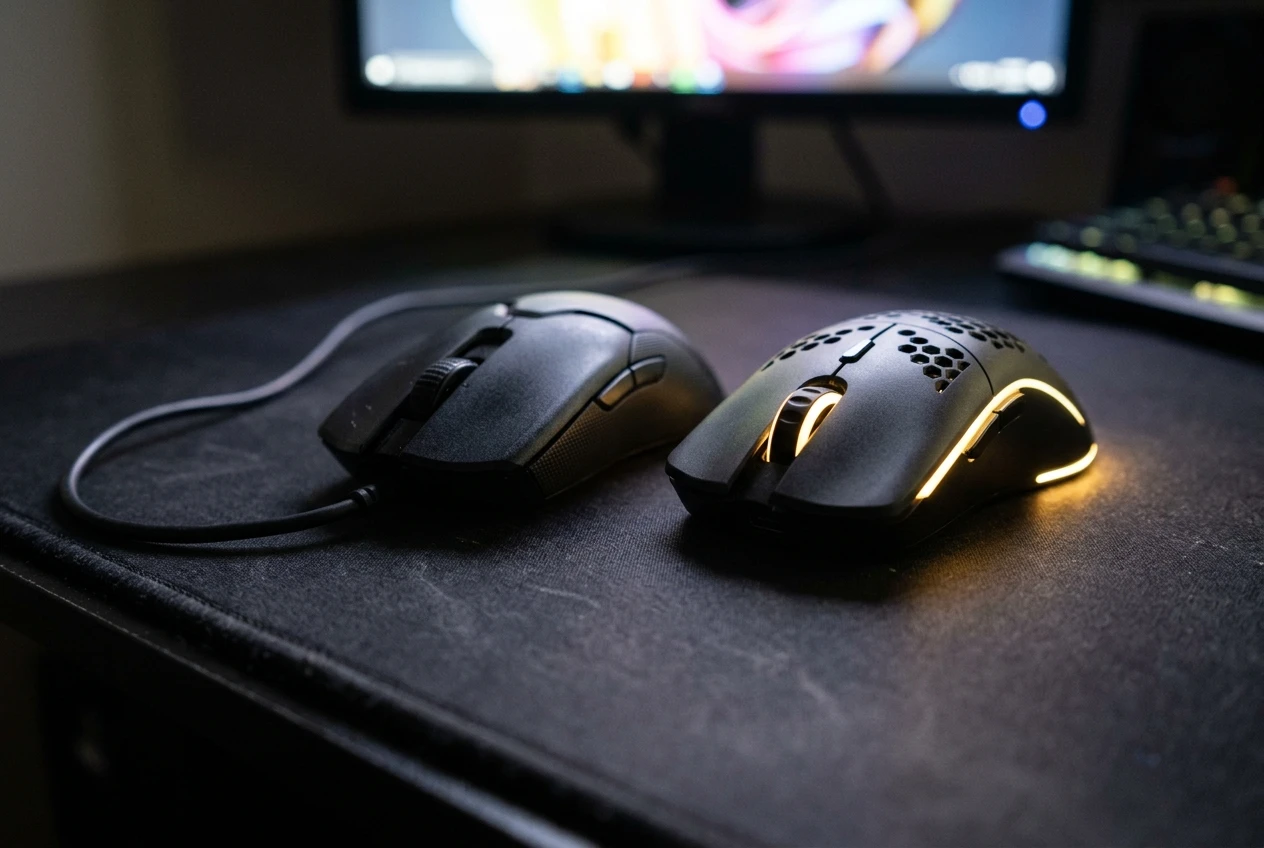
Buy the Logitech G203 if you want the safest wired option. It is a simple, established design, replacement parts and owner advice are easy to find, and a wired mouse has no battery to wear out. Pick this if your priority is spending as little as possible and not thinking about it again.
Buy the Logitech G305 if you want wireless with a replaceable battery. The AA cell means the part that ages most can be swapped for pennies. It suits someone who wants a cable-free desk and the longest possible life from one mouse.
Buy a Corsair Katar Pro if you want a lighter feel and already use Corsair gear. It is the better fit for players who prefer a light mouse and like one app for the whole desk. Check the current listing for cable type, switch details and warranty before buying, since those are the details that decide longevity.
Skip both if weight is your main requirement or you want something unusual. Ultra-light designs and larger-handed ergonomic shapes sit in different parts of the market, and the HyperX and Razer options in our HyperX vs Razer budget mouse comparison may fit you better.
Check current UK prices for our top Logitech and Corsair picks on Amazon, then read our best lightweight budget gaming mice list if weight matters more to you than brand.