

If you own an Xbox and find yourself running out of space for downloads or game installs, you’re definitely not alone. Modern games are huge, and Xbox consoles only come with a fixed amount of internal storage.
The good news is that adding extra storage to your Xbox is pretty easy, and actually opens the door to more flexibility, and just an all around less stressful experience when it comes to organizing your library. In one of my previous posts I talk about the different storage options and some I recommend if you would like to look at this as well.
Understanding Xbox External Storage Options
The need for more storage on Xbox consoles is more common than you might think, especially with Game Pass subscribers or anyone building up a digital collection. Whether you use an Xbox One or a newer Series X|S, there are a few main ways you can expand your storage setup, each with advantages and a few limitations to be aware of.
Xbox consoles support a pretty wide range of external storage devices, but what you can do with them depends on the games you play and the kind of device you connect. For many players, just being able to install and store more games is a game changer; but there’s more issues when it comes to performance and compatibility.
The Xbox Series X|S, for instance, comes with the ability to add a SSD expansion card, plus the option to plug in external USB drives. For a HDD you should go for a USB 3.0 because it’s faster and more reliable than a USB 2.0.
Compatible External Storage: What Works with Xbox?
Not all external drives are created equal, especially for Xbox gaming. Here’s how the main types break down:
- USB Hard Drives (HDD): Affordable, widely available, and great for storing tons of games, but slower than SSDs. On Xbox Series X|S, you can only play Xbox One, Xbox 360, and classic titles directly from these drives; newer Series X|S games must be transferred to internal SSD or an expansion card to actually run. But handy to be able to put newer games on to the HDD. And when you have enough internal storage just copy them over.
- USB Solid State Drives (SSD): Faster than HDD, so load times improve for backward compatible Xbox One and older games. Still, you can’t run Series X|S optimized titles directly from a standard USB SSD, those need to be moved to internal storage.
- Seagate Storage Expansion Card (Xbox Series X|S only): This is a specialized NVMe SSD designed for full speed and full compatibility with Series X|S games. It plugs right into a dedicated port at the back of the newer consoles and works exactly like your internal SSD. You can install, launch, and play everything, including the latest games with no extra steps.
Drives need to be at least 128GB in size and USB 3.0 compatible for games. Most common external drives work with Xbox, but sticking to trusted brands helps avoid headaches and ensures smoother gameplay experiences.
It’s also worth noting that solid state drives, while quicker for load times and file transfers, typically cost more per gigabyte than traditional hard drives. For gamers with massive libraries, sometimes a mix of both using an SSD for active titles and an HDD for mass storage can be the smartest way to mix space and speed.
How to Add External Storage to Your Xbox
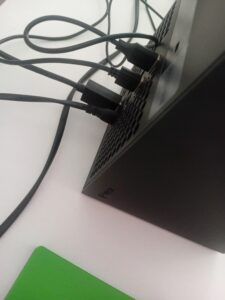
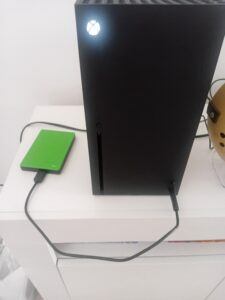
Setup is easy. Once you’ve picked a compatible drive, plug it into any free USB port on the console. Here’s how I usually walk through the process:
- Connect the drive: Use one of the back USB ports for the tidiest look, but front ports work just as well.
- Format for Xbox: The Xbox should prompt you to format the drive for game and app storage (this erases any files already on the drive, so back up important stuff first). Once formatted, the drive shows up in your Xbox storage menu.
- Move or install games: You can choose to install new games to the external drive, or move existing games from internal storage to free up space.
- Name your drive: For easy organization, you can give your external storage a name, so you always know which one you’re working with.
The process is very user friendly, and if you switch between drives later, your Xbox will recognize each one automatically. Additionally, Xbox guides you through the setup steps on screen, which makes it easy for beginners.
What Can (and Can’t) Be Played From External Drives?
This is where a lot of Xbox owners get tripped up. Playing games from external storage works differently depending on your console and the specific game.
- On Xbox One: Any game (including Xbox One, 360 backwards compatible, and OG Xbox classics) can be played directly off external HDDs or SSDs. You only need to use your internal drive for game saves and system updates.
- On Xbox Series X|S:
-
- Xbox Series X|S* optimized games: Must be on the internal SSD or the official Seagate Expansion Card to be played. You can store them on an external USB drive and transfer them when you want to play, but you can’t launch them straight from standard external drives.
- Xbox One and backward compatible games: Playable straight from pretty much any compatible external USB drive.
This system lets you use external drives to build a massive library, then only keep Series X|S games on the internal SSD when you’re actually playing them. You can also manage storage easily from the Xbox dashboard, allowing flexibility and less time spent micro-managing space.
Speed, Performance, and Storage Limits
The main advantage of an SSD, beyond storage, is speed. But the Xbox Series X|S is picky about which drives get those full benefits. External USB SSDs help a bit for last gen games, but the real speed boost for new titles comes from the internal drive or expansion card.
Officially, you can have up to three external USB drives connected at the same time, with an enormous total storage limit (over 16TB per drive). For most households, this is more than enough. If you ever unplug a drive, just plug it back in and the Xbox will instantly recognize all the games and apps stored on it with no lengthy scanning required.
Performance also depends on your drive’s read/write speeds and sometimes the quality of your USB cable. If you’re troubleshooting, try a different cable or port to see if you get better results.
Tips for Choosing the Best External Drive for Xbox
- Choose reliability: Well known brands like Seagate, Western Digital, and Samsung tend to have better longevity and warranty support.
- SSD vs HDD: For mass game storage, a big HDD is the cheapest option. If you’re switching between games often, an SSD can speed things up quite a bit and reduce wait times.
- Think ahead: Buying a drive a little bigger than your current needs might save you from juggling and deleting games later on. More storage means less hassle down the line as your collection grows.
Common Challenges and How to Fix Them
- Game not showing up after transferring: Make sure the transfer process finished (some big games take a few minutes). Sometimes unplugging and plugging the drive back in helps Xbox detect new files quickly.
- Slow transfers or game load times: Large HDDs in particular can be slow. Splitting up your games by type (keep current gen games on the expansion card and last gen favourites on external HDD) strikes a nice balance between speed and space.
- Drive disconnecting: Make sure your USB cables are in good shape and connected directly to the console, not a third party hub, as that can cause power interruptions.
Regularly checking for firmware updates for your drives and your Xbox itself can also stop random bugs and improve reliability.
Real Experiences with Xbox External Storage
I’ve tried nearly every setup by now, from using a budget 1TB portable hard drive to eventually buying the official expansion card when I upgraded to the Series X. The biggest relief for me has been not having to delete old favourites just to play new releases.
Transferring games back and forth is as easy as a couple of button presses, especially with clear prompts from the Xbox interface. I also noticed that if I kept my “always playing” games on the expansion card or internal SSD, load times felt way quicker, which was super handy on newer titles.
Having at least one external storage device means you can keep your whole collection handy without too much trouble. Cloud saves and auto downloads work seamlessly with external drives as well, so updating and reinstalling games feels less stressful and way faster than starting from scratch.
Many users online share similar stories, and it’s clear that external storage is now nearly a must for Xbox gamers, regardless of which model you own.
Frequently Asked Questions
Can I use any USB drive on my Xbox?
Most USB 3.0 drives 128GB or bigger work fine. For the best experience, stick with well-reviewed brands and avoid very old or super cheap drives to reduce the risk of data loss.
Will I lose my data if I unplug the external drive?
No, your games and saves stay on the drive. Just make sure not to unplug it when you’re copying files or actively playing a game stored on it.
Does adding external storage void my warranty?
Nope! Microsoft encourages upgrading storage, and their own support pages walk you through the process. Just don’t disassemble your console.
Do I need the official Seagate Expansion Card?
You only need the official expansion card if you want to install and launch Series X|S–optimized titles at the same speed as the internal drive. For Xbox One and backward-compatible games, regular external drives are totally fine.
Bottom Line
External storage options for Xbox are super flexible, making it easy to build a game library that actually fits your interests and doesn’t leave you managing space every few weeks. Whether you go for a budget friendly hard drive or splurge on the expansion card, increasing your storage means a smoother, more customizable gaming experience.
Next time you get hit with a “not enough space” message, know that you’ve got plenty of solutions to keep your gaming running hassle free. Thanks for reading and any questions drop down in the comments below cheers.