
The best gaming monitor under £150 in the UK depends on what you play. A competitive shooter player wants the highest refresh rate the budget allows, a console player wants to check HDMI behaviour before anything else, and someone who mostly plays single-player games gets more from a better panel than from extra hertz.
This guide sorts the Amazon UK options by play style and panel type instead of by price. Amazon’s listings and prices change constantly, so each pick below is described as a spec profile you can search for and check against the product page. Whichever listing matches your profile, you will know what to verify before you buy.
What £150 buys you in a gaming monitor in 2026, and what it doesn’t
Under £150 you can expect a 24 or 27 inch screen at 1080p, with a refresh rate somewhere between 75Hz and a high-refresh figure such as 144Hz or above, and adaptive sync support (FreeSync, and often G-Sync compatibility). Both IPS and VA panels appear at this price, along with the occasional TN.
Some things are rare or unreliable at this price:
- Useful HDR. A listing that says “HDR” or “HDR10” usually means the monitor accepts an HDR signal. It does not mean the screen is bright enough or has enough contrast to show it well.
- High resolution with high refresh. A 1440p screen at a high refresh rate is hard to find under £150, so check any listing that claims both.
- Fully adjustable stands. Many budget monitors tilt and nothing else.
- HDMI 2.1 features for console players wanting the most from a PS5 or Xbox Series X. More on this below.
Treat the budget as a set of trade-offs. You pick which one or two things matter most and accept compromises on the rest.
How the picks are chosen: the specs that matter at this price
Four specs do most of the work, and one marketing habit is worth knowing about.
Refresh rate. This is how many times per second the screen updates. 60Hz is the baseline, 75Hz to 100Hz is a mild step up, and 144Hz and above is where fast games start to feel noticeably smoother. The jump from 60Hz to 144Hz is large. The jump from 144Hz to 180Hz is small, so do not pay extra for the higher number on a tight budget.
Response time. This is how quickly a pixel changes colour. Slow response shows up as smearing behind moving objects. The “1ms” figure on many listings is often measured under favourable conditions (a grey-to-grey test with the strongest overdrive setting, or a different measurement called MPRT). Treat it as a rough signal, not a guarantee. A monitor claiming 1ms can still smear in practice, and independent reviews with measurements are the best check.
Panel type. IPS, VA and TN each have a different strength, covered in its own section below.
Size and resolution. At 1080p, a 24 inch screen looks sharper than a 27 inch one because the same pixels are spread over a smaller area. If your desk is close to you, 24 inch is the safer choice. A 27 inch 1080p screen is fine at arm’s length for games, but text looks softer.
Spec sheet claims to ignore at this price: “HDR” badges, “eye care” modes, “curved” as a performance feature, and any contrast ratio listed as “dynamic” or “mega”. None of these changes how a game plays.
Best for fast shooters: a high refresh rate pick
If you play Counter-Strike, Valorant, Apex Legends, Call of Duty or similar, buy for refresh rate and response time first.
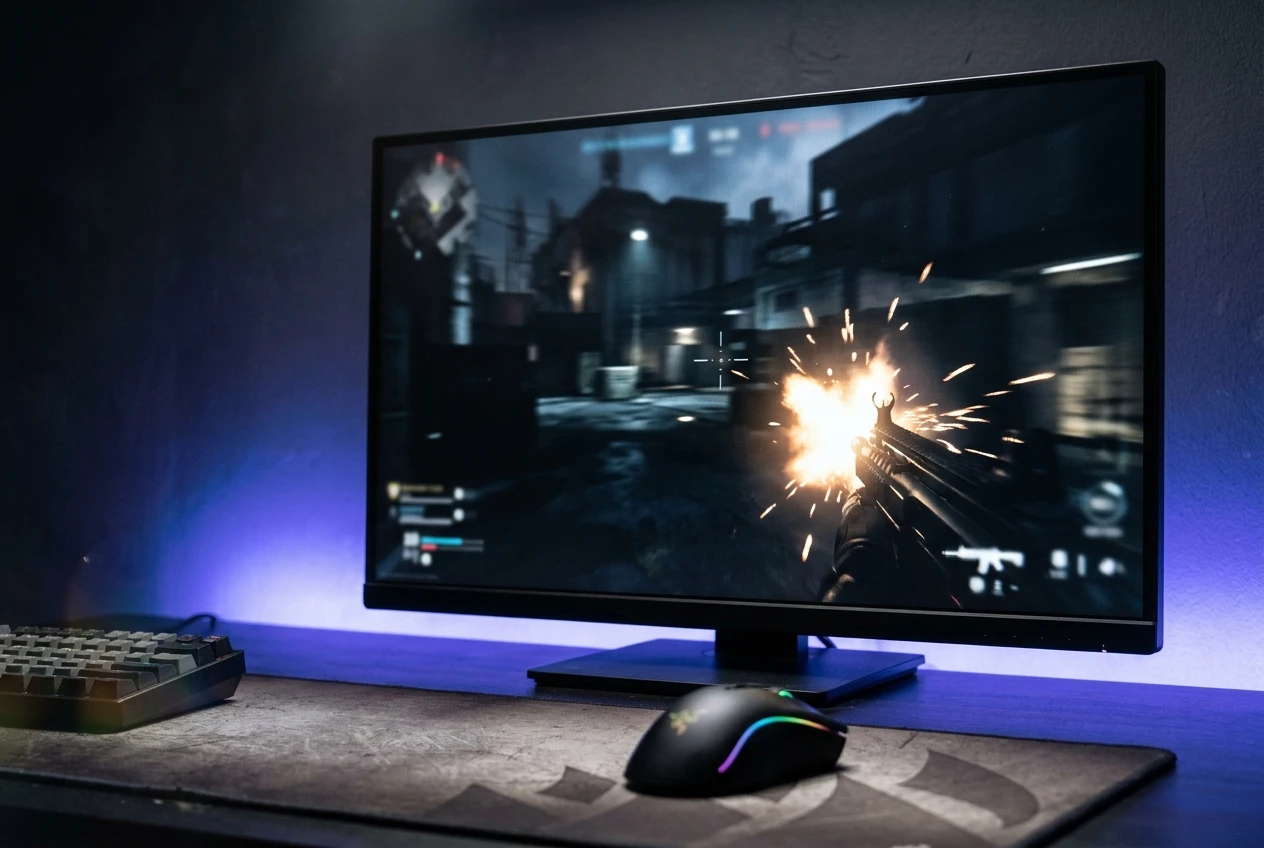
What to search for: a 24 or 25 inch, 1080p monitor at 144Hz or above, with adaptive sync, and either a fast IPS or a TN panel. Fast IPS panels now sit at similar prices to TN and have better colour and viewing angles, so choose IPS unless a TN listing is clearly cheaper and has strong reviews.
What to check on the listing:
- The 144Hz or higher refresh rate should be available over the connection you will use. Some monitors only reach their full refresh rate over DisplayPort, and some limit HDMI to a lower figure. The product page or manual usually says.
- Look for an overdrive setting in reviews. A monitor with a well-tuned overdrive mode reduces smearing, and one with poor tuning shows ghosting.
- Read recent customer reviews for backlight bleed and dead pixels, which vary between units.
Your PC also needs to produce enough frames to use the refresh rate. If your frame rate sits well below 144, the monitor will not look any smoother. Our guide on how to optimise PC for gaming on a budget covers getting more frames from the hardware you already own.
Best for picture quality: an IPS pick for colour and viewing angles
For single-player games like open-world RPGs, racing games and story-driven titles, picture quality matters more than the last bit of speed.
What to search for: a 24 or 27 inch, 1080p IPS monitor at 75Hz to 144Hz. A 75Hz or 100Hz model is often cheaper and still looks smoother than 60Hz.
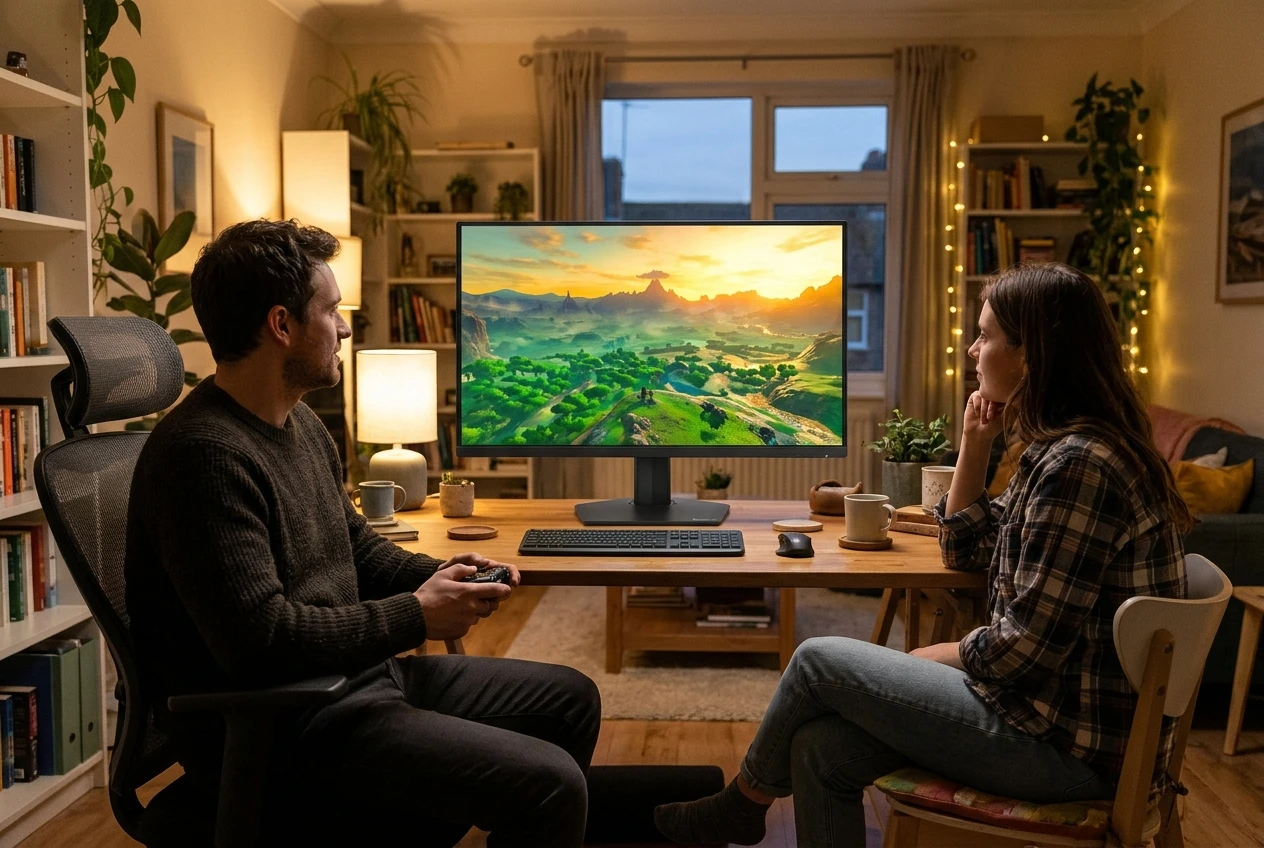
IPS panels show colour accurately and stay consistent when you view them from the side, which helps if you share the screen or sit at an angle. The drawbacks are lower contrast than VA, so blacks look greyer in a dark room, and a faint glow in the corners of dark scenes called IPS glow.
What to check:
- Whether the listing states sRGB coverage. Higher coverage (around 99 per cent or more) generally means more accurate colours.
- Whether reviewers mention backlight bleed in dark rooms.
- Whether the stand tilts, as a fixed stand can put the screen too high or too low.
Best for console players: what to check for PS5 and Xbox
Console players have a different checklist from PC players.
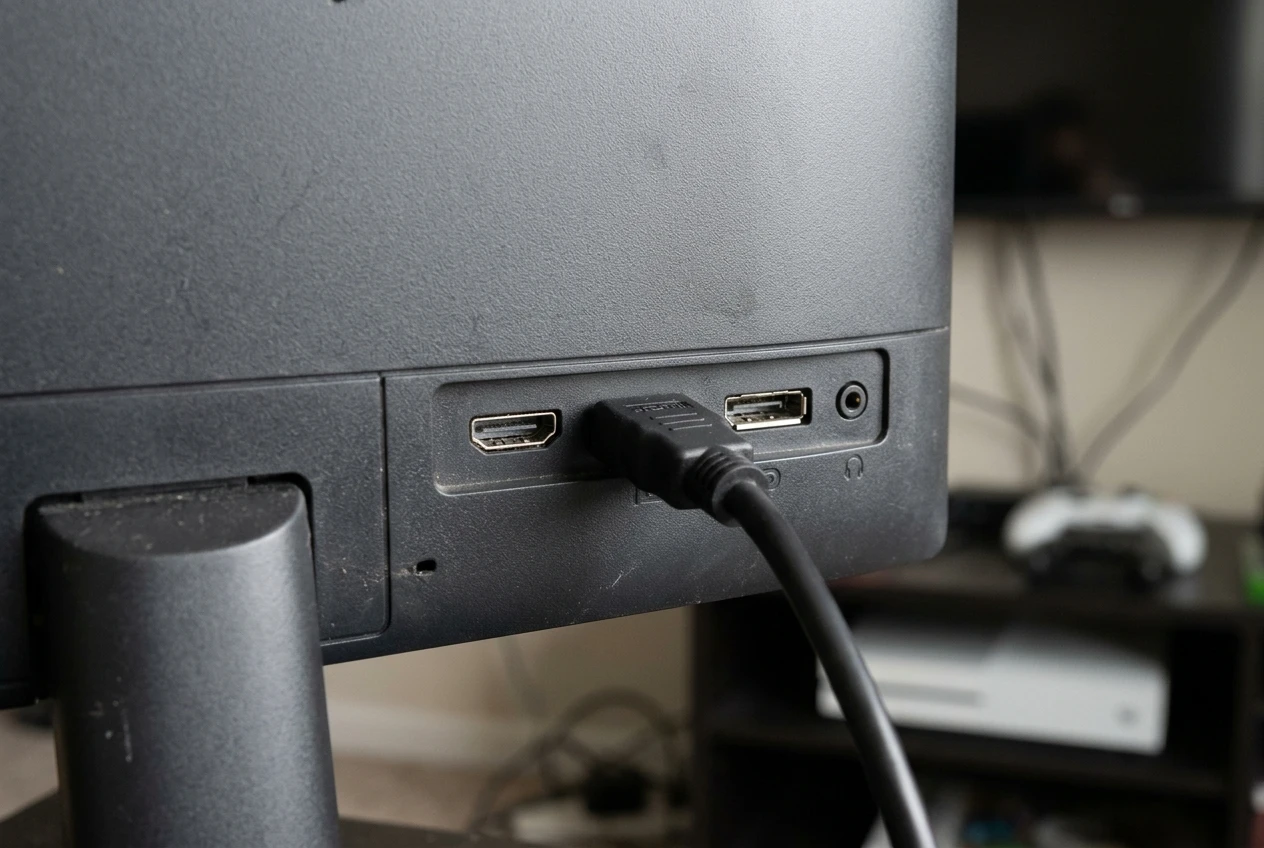
Both the PS5 and Xbox Series consoles can output 120Hz in supported games, but a monitor needs to accept a 120Hz signal over HDMI to show it. Many cheap monitors list 144Hz but only deliver it over DisplayPort, which consoles do not have. Confirm in the listing or manual that the HDMI port supports the high refresh rate you want.
Other things to check:
- Resolution and refresh rate together. Many monitors accept 120Hz at 1080p but not at higher resolutions.
- HDMI version. Features like variable refresh rate and 4K at 120Hz typically depend on HDMI 2.1. This is uncommon in the cheapest monitors, so if the listing does not mention it, assume it is not there.
- Number of HDMI ports. One port is enough for a single console, but two lets you connect a console and a PC without swapping cables.
- Speakers and headphone jack. Built-in speakers on budget monitors are weak. A headphone jack lets you plug in a headset directly.
If you play at 60 frames per second on console, any decent 1080p IPS or VA monitor works. The 120Hz requirements only matter if the games you play support it.
Best if you’re spending as little as possible: the cheapest monitor worth buying
At the lowest end, the cheapest monitor worth buying is a 24 inch, 1080p IPS monitor at 75Hz with an HDMI port and adaptive sync.
That specification gives you a sharp image, good colour, and a mild step up from 60Hz. It will not suit fast competitive play, but it works well for casual PC gaming and console play at 60 frames per second.
Avoid listings that have a very low price and very few reviews, a brand you cannot find any independent reviews for, or specifications that seem too good (a 240Hz claim at an unusually low price, for example). If a listing’s headline numbers look better than monitors costing more, read the reviews for complaints about refresh rate over HDMI or colour quality.
IPS, VA or TN: which panel suits the games you play
Panel Strengths Weaknesses Best for IPS Accurate colour, wide viewing angles Lower contrast, possible IPS glow Single-player games, mixed use, most buyers VA Deep blacks, high contrast Can smear in dark scenes, narrower viewing angles than IPS Dark, atmospheric games and film TN Fast response, often cheapest at high refresh rates Weak colour, poor viewing angles Competitive shooters on a tight budget
For most buyers, IPS is the safe choice. VA suits you if you play in a dark room and care about contrast, though check reviews for smearing. TN is only worth choosing if you want the lowest price for a fast competitive screen and accept the weaker picture.
Check before you click buy: ports, stand, VESA mount and UK stock and price changes
Before you buy, check the listing for:
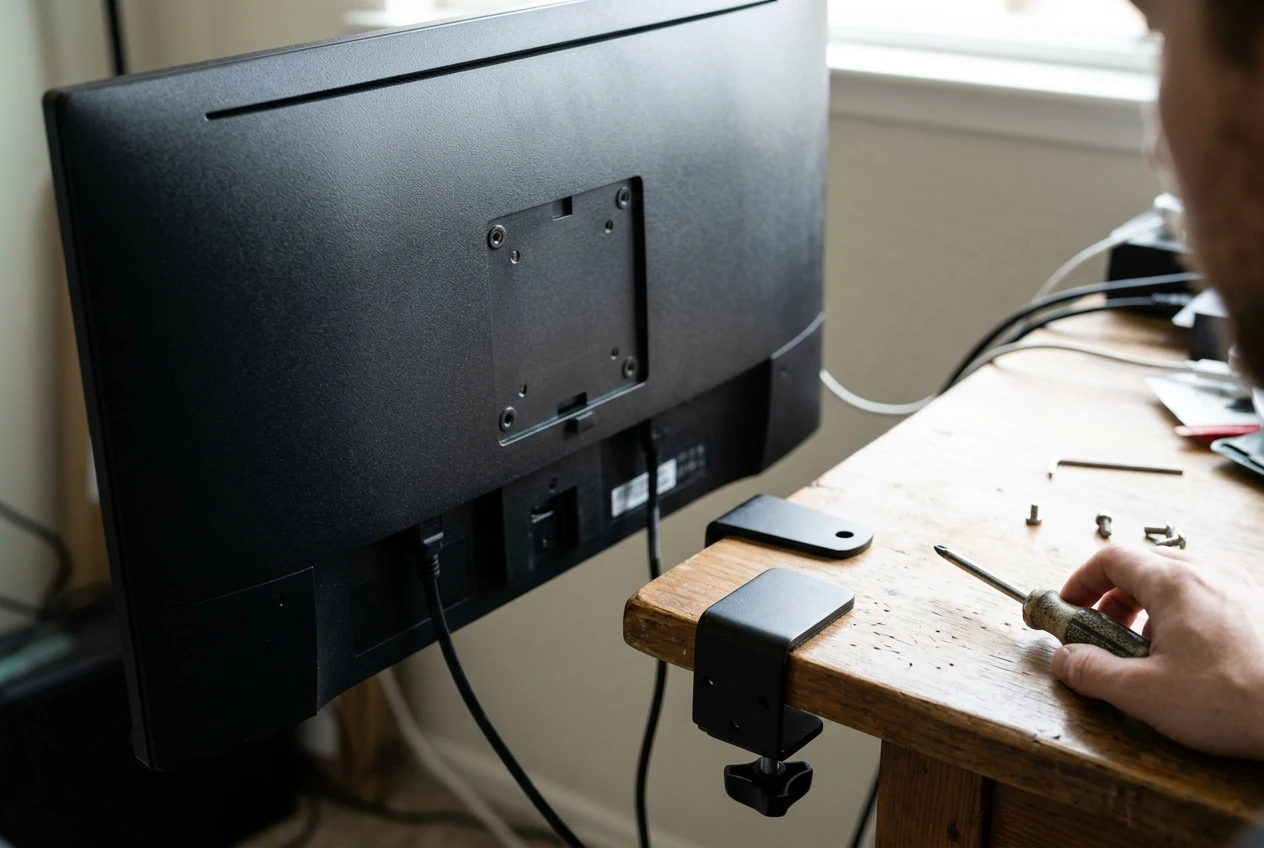
- Ports. Confirm which ports it has (HDMI, DisplayPort, headphone jack) and which versions. Confirm that your cable is included, because some listings include only one.
- Stand. Many budget stands only tilt. If you want height adjustment, look for a VESA mount.
- VESA mount. A VESA pattern (commonly 75x75mm or 100x100mm) lets you attach a monitor arm. Check that the listing confirms it, since some monitors have a back shape that blocks it.
- Seller and delivery. Check that the item is sold and dispatched by Amazon or a reputable seller, and that delivery to the UK is clearly stated.
- Price and stock. Prices on Amazon UK move often. A monitor over £150 today may drop under it later, and a listing under £150 may rise. Check the price on the day you buy.
- Returns. Backlight bleed and dead pixels vary by unit, so check the return window in case your screen has a fault.
What to buy next to finish the desk: keyboard, headset and mouse picks
A new monitor makes the rest of the desk more noticeable, and these guides cover the other pieces at budget prices:
- Headset: the best budget gaming headsets for hearing footsteps in the UK helps if you play shooters.
- Keyboard: the best cheap mechanical keyboards for gaming in the UK covers options by budget and play style.
- Mouse: best lightweight budget gaming mice suits fast, precise aiming.
Pick your monitor and check the price
Choose the profile that matches how you play: a 144Hz-plus fast IPS or TN for shooters, a 1080p IPS for picture quality, an HDMI-checked 120Hz-capable model for console, or a 24 inch 75Hz IPS for the lowest price. Check the current price on Amazon UK for the monitor that fits your play style, since prices and stock change often, then take a look at our guide to building a budget gaming setup to put the rest of your desk together.