
If your PC stutters or sits well below your monitor’s refresh rate, some of the fixes are free and some cost a few pounds. This guide covers how to optimise a PC for gaming on a budget by working through the free fixes in rough order of how much frame rate they tend to recover, then showing where settings stop helping and a small purchase makes sense. Do the free steps first. They may be all you need, and they show you which upgrade to buy if you do need one.
Check what is actually holding your FPS back before you change anything
Tweaking blind wastes time. Open a game you want to run better, press Ctrl+Shift+Esc to open Task Manager, and watch the Performance tab while you play (or while the game’s built-in benchmark runs). A free overlay such as MSI Afterburner also shows frame rate, temperatures and clock speeds on screen.
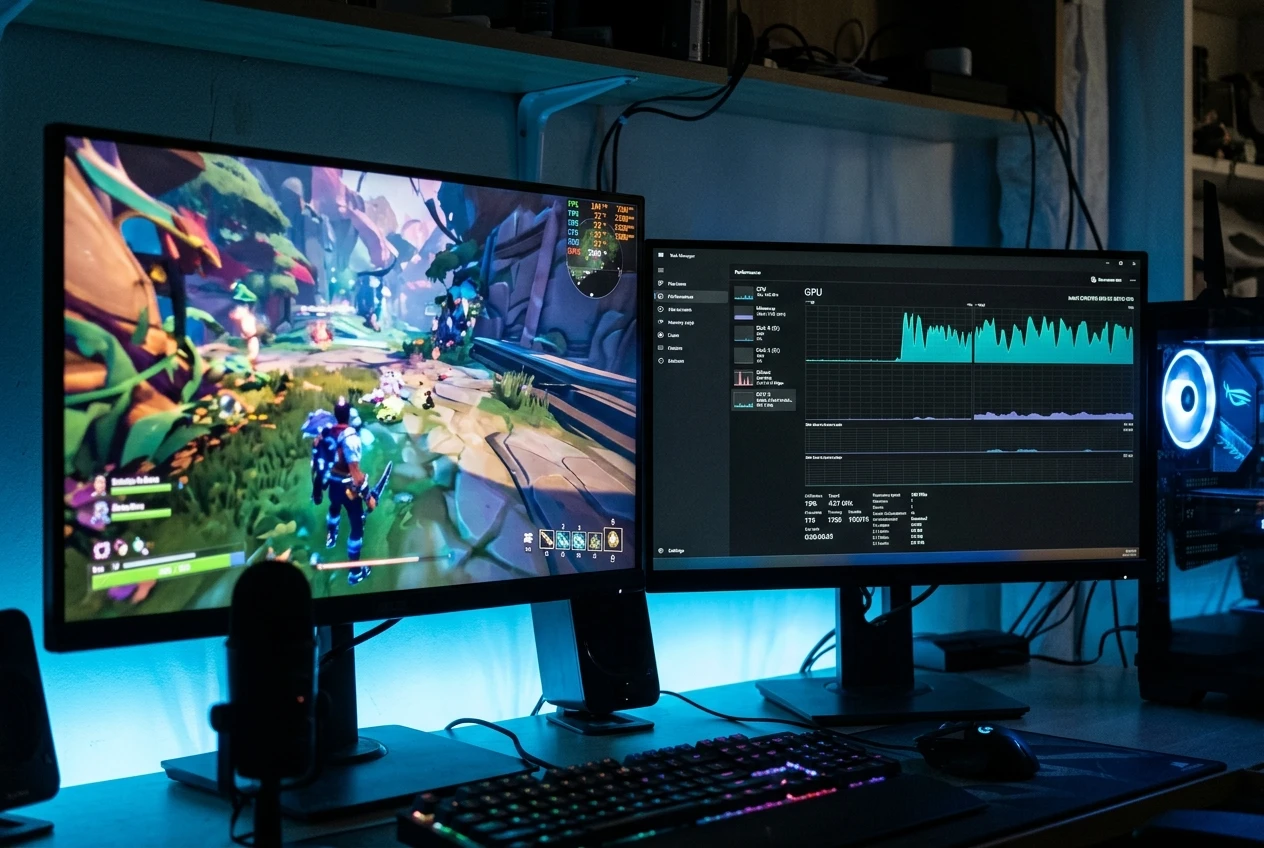
Read the numbers like this:
- GPU near 95 to 100 percent: the graphics card is the limit. Lowering resolution, graphics settings or using upscaling will help.
- GPU well below that, CPU very busy: the processor is the limit. Dropping graphics settings will do little, so Windows background load and a frame cap matter more.
- Memory almost full: the PC is running out of RAM and swapping to disk, which causes hitching.
- Disk at 100 percent during play: the game or Windows is waiting on a slow hard drive.
Write down your average frame rate and how often it dips before you touch anything. Without that baseline you cannot tell which change helped.
Free Windows fixes: Game Mode, power plan, startup apps and background processes
Of the free fixes, trimming background load usually recovers the most on an older PC, especially one with 8GB of RAM or less. The rest are small but take a minute each.
- Close background programs. Browsers with many tabs, chat apps, cloud sync tools and RGB or peripheral software all use memory and CPU time. Close them before you launch a game.
- Disable startup apps. In Task Manager, open the Startup apps tab and switch off anything you do not need running from the moment you log in. Launchers, updaters and manufacturer utilities are the usual culprits. You can still open them by hand when you want them.
- Check your power plan. Search for “Choose a power plan” in the Start menu and pick Balanced or High performance. On a laptop, plug it in, because most laptops cut performance on battery.
- Turn Game Mode on. It is under Settings, then Gaming, then Game Mode. Its effect varies from small to unnoticeable, but it is free and tells Windows to prioritise the game.
- Restart before a long session. A PC that has run for days can have leaked memory and stuck processes.
Update graphics drivers and set up the GPU control panel properly
Download drivers from NVIDIA, AMD or Intel directly rather than relying on Windows Update, which often lags behind. New game releases often come with driver updates, and an outdated driver can cost frames or cause crashes in newer titles. If you have a problem after an update, the installers include a clean install option that removes old settings first.
Then check three settings that quietly cost people performance:
- Refresh rate. In Settings, then System, Display, Advanced display, confirm your monitor is running at its top refresh rate. Plenty of monitors default to 60Hz until you change it.
- Which GPU the game uses. On laptops and some desktops with integrated graphics, a game can run on the weak integrated chip. Under Settings, System, Display, Graphics, set the game to High performance so it uses the dedicated card.
- Power management in the control panel. In the NVIDIA Control Panel, you can set power management to prefer maximum performance for specific games. AMD’s software has similar per-game profiles.
In-game settings that cost the most frames and the ones you can leave high
Lower the expensive settings first, because they give the largest gain for the least visual loss. Change one at a time and re-run your benchmark.

Usually expensive:
- Shadow quality
- Volumetric fog and clouds
- Ambient occlusion
- Reflections and any ray tracing
- High-level anti-aliasing
- Render resolution or resolution scale
Usually cheap to leave high:
- Texture quality, provided your graphics card has enough video memory
- Texture filtering (anisotropic filtering)
- Model and object detail in many games
Textures depend on VRAM. If you set them higher than your card’s memory can hold, you get stutter instead of a smooth image, so lower them a notch if the game hitches when you turn quickly or enter a new area. Every game weighs these settings differently, so treat this list as a starting order and trust your own benchmark.
Upscaling and frame caps: DLSS, FSR and why a limiter can feel smoother
Upscaling renders the game at a lower resolution and scales it up, which raises frame rate when the GPU is the limit. NVIDIA’s DLSS needs an RTX card. AMD’s FSR and Intel’s XeSS are supported by more hardware, and FSR is available on many non-AMD cards. If a game offers any of them, try the Quality mode first, as it looks closest to native. Performance modes gain more frames but look softer.
Frame generation, offered by some of these technologies, inserts extra frames. It generally works best when your frame rate is already reasonable before you switch it on, so it is not a rescue for a PC running very slowly.
A frame limiter is the other free tool. Uneven frame times, where the game swings between fast and slow frames, can feel worse than a lower but steady frame rate. If your PC averages 75 FPS but jumps around, capping at a rate it can hold consistently, such as 60 on a 60Hz screen or a few frames under your refresh rate on a faster one, often feels smoother. You can set the cap in the game, the graphics driver, or a tool like MSI Afterburner’s companion software.
Cooling, dust and thermal throttling: the cheap fix people skip
When a CPU or GPU gets too hot, it lowers its own clock speed to protect itself. That shows up as a game that runs well for ten minutes and then slows down. Use your overlay to watch temperatures and clock speeds during a long session. If clocks fall as temperature rises, heat is costing you frames.
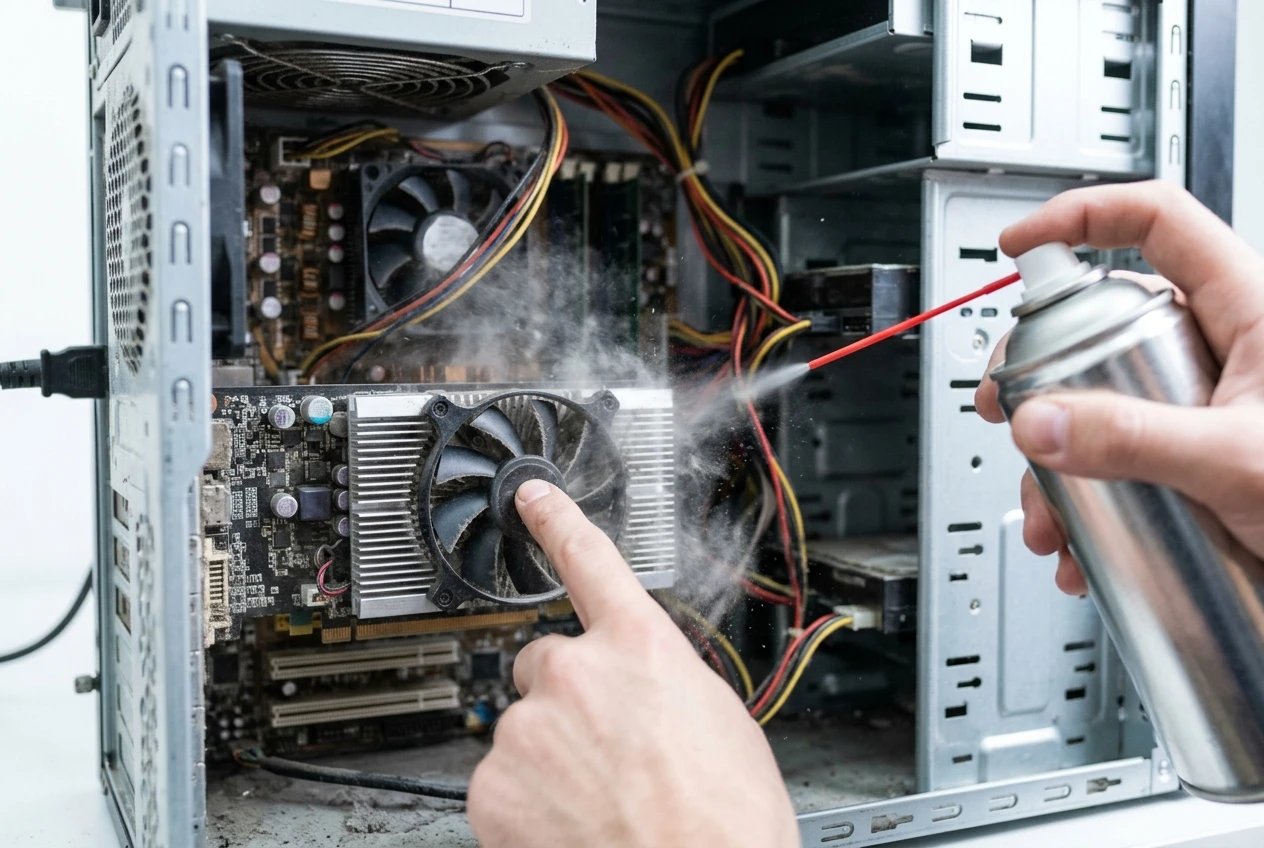
Start with the cheapest fixes:
- Power off and unplug the PC, then clear dust from the fans, heatsinks and filters with compressed air. Hold the fans still while you blow so they do not spin freely.
- Make sure the case has clear space at the intake and exhaust, and is not shut in a cupboard or pushed against a wall.
- On a laptop, use it on a hard surface or a raised stand so the vents can breathe.
- On a PC that is several years old, the thermal paste between the CPU and its cooler can dry out. Replacing it takes a small outlay and some patience, but follow a guide for your specific cooler first.
When settings run out: the cheapest upgrades that make a real difference (RAM, SSD, GPU)
If you have done the above and your Task Manager readings still point at one component, a targeted upgrade makes sense. Match the purchase to what you saw earlier. Prices change often, so check the current UK price in pounds before you buy.
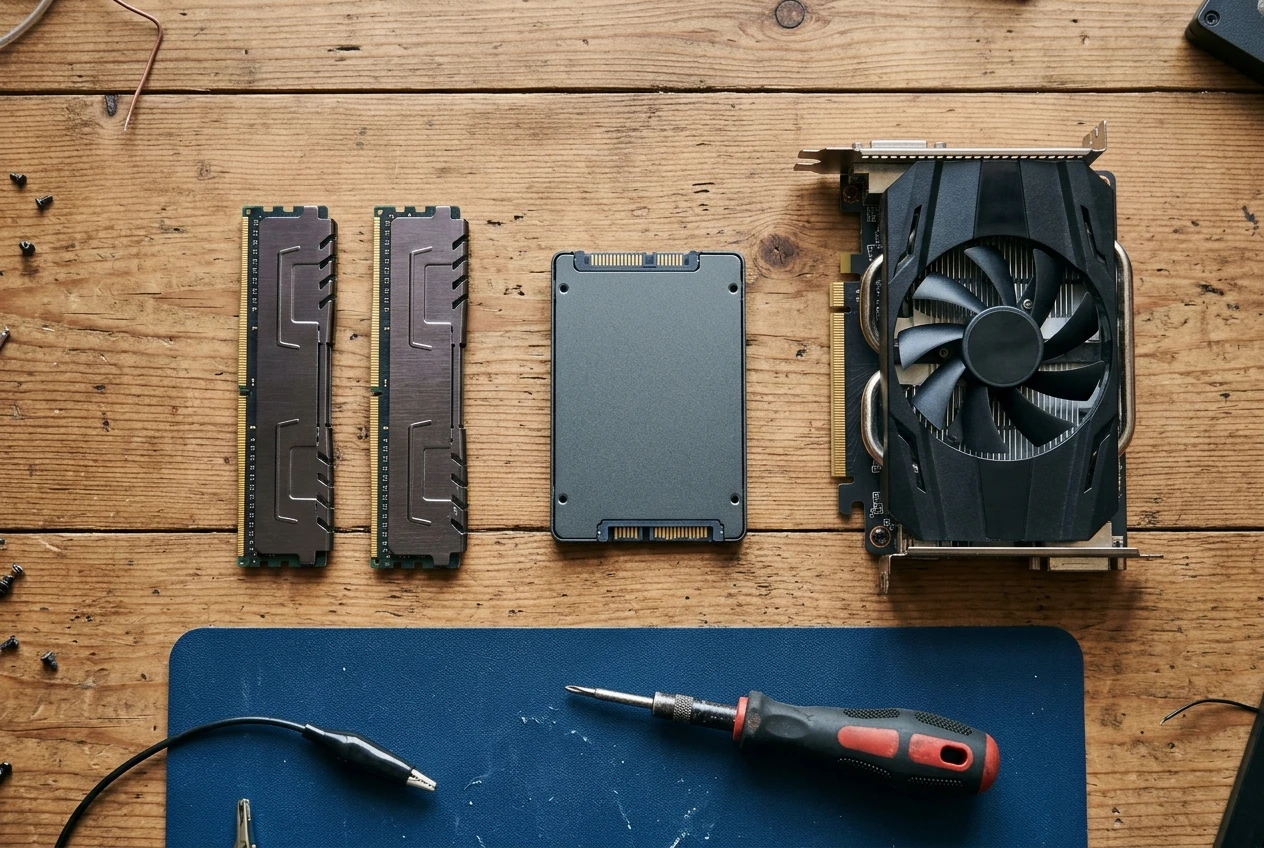
RAM. If memory sits near full while gaming and you have 8GB, moving to 16GB is usually the cheapest meaningful upgrade. Buy two matching sticks rather than one, so the memory runs in dual channel. Check which type your PC uses (DDR3, DDR4 or DDR5) and your motherboard’s or laptop’s maximum, because the wrong type will not fit or work.
SSD. If the game runs from a hard drive and your disk hits 100 percent, an SSD helps. It will not raise your average FPS much, but it shortens load times and cuts the hitching that happens when a game streams data from a slow drive. A SATA SSD works in almost any older PC. An NVMe drive is faster but needs a compatible M.2 slot.
GPU. If the GPU was pinned at 95 to 100 percent and you have already lowered settings, a graphics card is the upgrade that raises frame rate most. It is also the riskiest purchase for an older system. Check that your power supply has enough wattage and the right connectors, that the card physically fits your case, and that your CPU will not hold the new card back. If you buy used, check the seller’s return terms.
Pick the single upgrade your readings point to and fit it before buying anything else, so you can see what it changed.
If tuning is not enough, what to read next on building or buying a budget rig
Some PCs are too old to tune any further. If the CPU is the limit and it is several generations behind, swapping it usually means replacing the motherboard and often the RAM as well, at which point a new build costs little more. In that case, read how to build a gaming PC on a tight budget for a parts plan that suits UK prices.
If your PC is still holding up, go back to the upgrades section, take the one that matches your Task Manager readings, and check its current price in pounds before you buy.